Lesson 2: Fighter Jet Side Scroller Part 1
Intro
Hello again, today we're building something a bit more involved, and I'll be covering a bunch of new topics along the way. I promise it's worth it though, because unlike the previous projects which were more learning exercises, this one actually turns into a genuinely fun game. Here's the finished result: https://scratch.mit.edu/projects/1292260608/
Planning the Game
Before touching any blocks, we need to figure out what's actually going on in this game. Here's the plan:
- A fighter jet that can move up and down at a fixed speed
- Missiles flying in from the right toward the player
- The player can shoot back by pressing the space bar
- Clouds and a blue background to sell the atmosphere
Now that we know what we're building, let's start putting it together.
Building the Fighter Jet
Start with the main sprite: the fighter jet. Delete the Scratch cat and draw a box in paint mode for now. We'll replace it with proper art later. Attach a when green flag clicked block and set the starting position to x: -100 and y: 0. Then add a forever loop for the controls. Inside it, place two if... then blocks. The first checks key (up arrow) pressed? and changes y by 5. The second checks key (down arrow) pressed? and changes y by -5. Those blocks are in the Motion category. Your code should look like this so far:
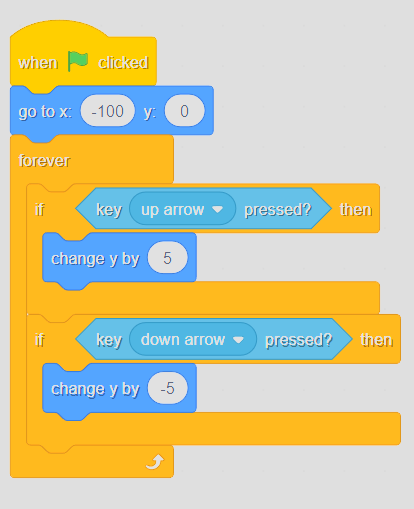 Fighter movement code
Setting Up the Projectiles
To shoot, we need a new sprite. Call it "Projectile" and draw a small yellow rectangle for now.
Go back to the fighter sprite and add another if... then block to the main loop. Check if the space key is pressed, and inside that block add create clone of (Projectile). A clone is an identical copy of a sprite that can run its own script independently from the original. This is how we get multiple projectiles on screen at the same time without creating a brand new sprite for each one. The updated game loop looks like this:
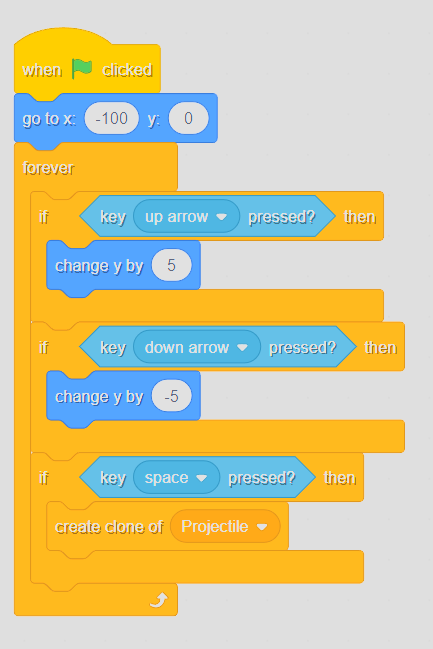 Projectile cloning code
Now head over to the Projectile sprite. Before adding the
Projectile cloning code
Now head over to the Projectile sprite. Before adding the when I start as a clone block, hide the original sprite first. It's just sitting in the center of the screen and we don't want it visible. Do that, then add the when I start as a clone hat block.
Since we hid the original, the clone needs to show itself first. Then make it jump to the Fighter sprite's position using the go to (Fighter) block. After that, the projectile needs to fly forward at a constant speed and delete itself when it hits the edge. The only hint I'll give you: there's a block called delete this clone. You can figure the rest out.
The Projectile sprite code should look like this now:
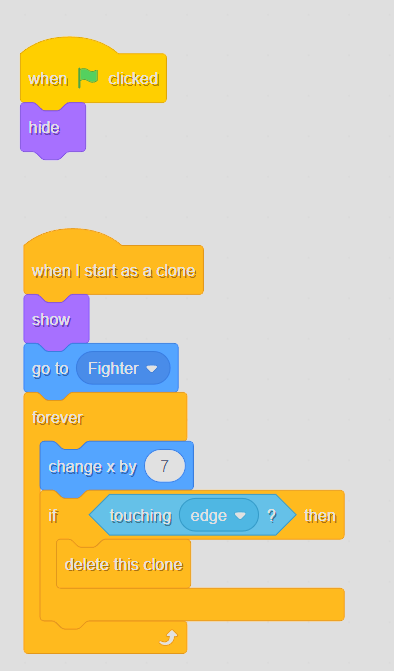 Projectile movement code
Programming the Missiles
Create a new sprite and call it "Missile". Draw a gray rectangle for now.
Just like with the projectile, we're going to clone it, since dodging a single missile would be way too easy. Hide the original sprite first, same as before. Now write the when I start as a clone script.
Before we do, there's one new block worth explaining: the or operator. It's a block that checks two conditions at once and returns true if at least one of them is true. For example, "is it raining OR is it snowing?" would be true if either one is happening. We'll use it here because we want the missile to disappear if it hits the edge OR if it hits a projectile. Either one should trigger the same outcome, so or is exactly what we need.
I'll give you the structure, but you'll have to write the actual code:
- Spawn on the right edge of the screen with a randomized
yposition (between-140and140) - Show itself
- Move left at 8 steps per frame until it hits the player, a projectile, or the edge
- If it hits the edge or a projectile, delete the clone
- If it hits the player, stop the game
Run the project now. Nothing's happening, right? Can you guess why? We're not actually cloning the missiles anywhere. You need a separate script with a forever loop that spawns a new missile every few seconds. How often is completely up to you, that's basically your difficulty setting.
Here's my full solution for both scripts:
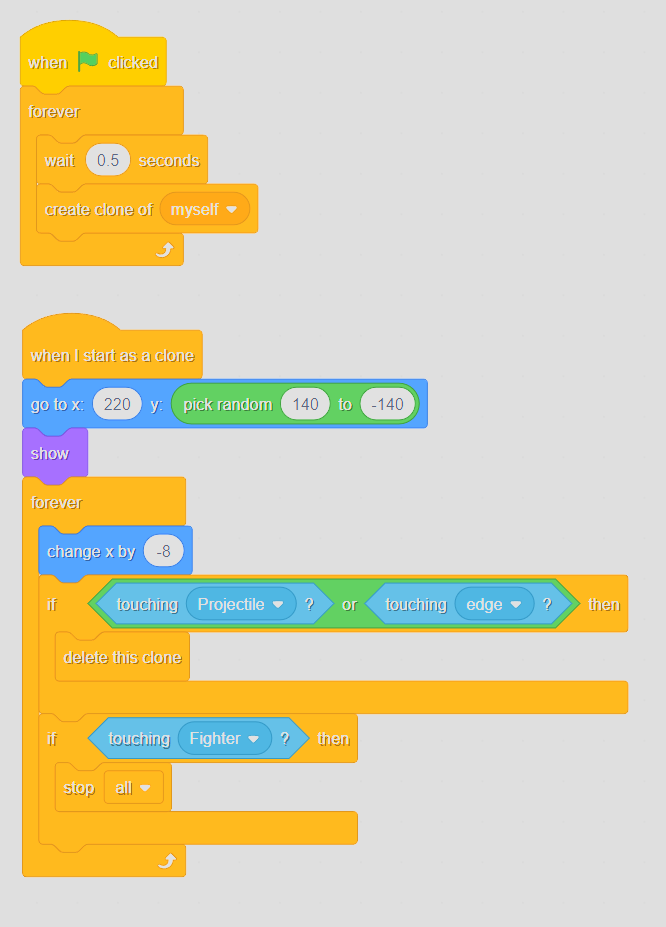 Missile logic code
Adding Clouds
Time to add some clouds. We need to clone them and move them across the screen from right to left. Sound familiar? It's the same setup as the missiles. Duplicate the Missile sprite (right click it, then click duplicate) and adjust the costume and speed. Design a new cloud costume. A white rectangle works perfectly fine if drawing isn't really your thing, and honestly that's where I'm at too. Drop the movement speed down to 3 instead of 8. This matters more than it sounds: if the clouds move at the same speed as the missiles, everything blurs together and the missiles feel sluggish. Slower clouds create a sense of depth that makes the action feel much faster and more intense. Also remove the checks for touching the fighter and projectile. You can't collide with or shoot clouds after all.
Creating the Sky Background
Go to the Stage, open the Costumes tab, and convert it to bitmap. Pick a nice shade of blue for the sky and click to fill the whole backdrop. That's it, instant sky.
What's Next
This project isn't fully finished yet. There are a few obvious rough edges that are still worth addressing, and that's exactly what we'll cover in the next lesson. See you there :)