Lesson 3: Painting Game with Pen
What We're Building
In this lesson we'll be using a Scratch extension called Pen to make a fun drawing game. If you want to take a look at the end result, here it is: https://scratch.mit.edu/projects/1286628644/
Installing the Pen Extension
Scratch has a bunch of extensions that add new functionality to your projects, some more useful than others. In this tutorial we're using Pen. It lets us draw on the screen without pushing Scratch to its limits, since doing this any other way would be a real headache. To install it, click the purple icon in the bottom left corner of your screen and select "Pen". A new category will appear. Head there to see all the blocks you now have access to.
Setting Up the Forever Loop
First grab a when green flag clicked block in the cat sprite. Then we'll need a type of loop you probably haven't come across yet: the Forever Loop. Find it in the Control category and attach it to the hat block.
We use a forever loop here because we don't want things running a fixed number of times and then stopping. We want the drawing to keep working for as long as the project is running. Whatever we put inside this loop will keep executing continuously until someone clicks the stop button.
Adding the Pen Blocks
Before the Forever Loop, add an erase all block. This clears everything off the screen so nothing from a previous run shows up when you restart the project. Inside the Forever Loop, add a stamp block. It places a stationary copy of the cat sprite at its current position. Your code should now look like this:
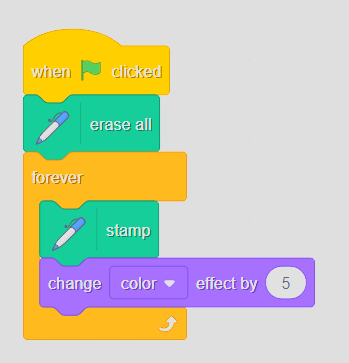 Pen blocks setup
Moving with the Mouse
If you haven't noticed yet, the stamping is working fine, but since the cat isn't actually moving all the stamps just pile up in one spot. The most straightforward solution is to move the cat to wherever the mouse cursor is every single frame. Go to the Motion category and find the go to (random position) block. Change "random position" to "mouse pointer", drop it into the forever loop, and the project should be working.
Erasing with the Space Bar
If you experiment around a bit, you'll run into a problem pretty fast: too many cats on screen. Luckily there's a simple fix. Go to the Control category and grab an if... then block. This block checks whether something is true, and if it is, it runs whatever is inside it.
Head to the Sensing category and get a key (space) pressed? block. Drop it into the pointy slot on the if block. That pointy slot is called the predicate, it's where the condition goes. Add an erase all block inside the if statement. Your final code should look like this:
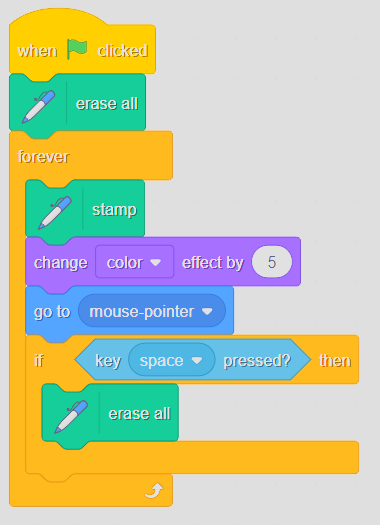 Final drawing code
What to Try Next
You could call it finished here since the cat moves around and stamps copies of itself wherever it goes. But there's a lot of room to take this further. Some ideas:
- Adding a color effect to make things more visually interesting (which is what you can see in my version)
- Making the cat switch costumes when a key is pressed so you can draw different shapes
- Whatever else you come up with
With that, see you in the next one ;)